UltraScan Model Editor
Using this window, you choose a model to load and can create or edit a model.
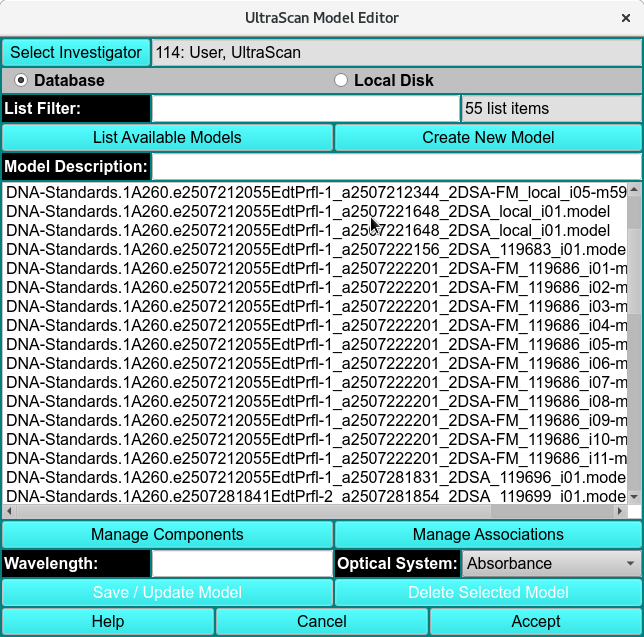
Model Editor
Model Editor Functions:
Select Investigator |
This button brings up an Investigator Dialog that allows selecting the current investigator for whom to list models. |
Use Database |
Check to select loading or editing the model from the database. |
Use Local Disk |
Check to select loading or editing the model from the hard disk. |
List Available Models |
This button initiates population of the list of models from the designated source (DB or disk). |
Create New Model |
This button designates that the model to be specified and used by the caller is new. An entry with the name New Model will be added to the list. It should be changed in the Model Description text box to an appropriate name. |
Model Description: |
The text box here echoes the name of the model currently selected in the list. The text box entry can be edited to change the model name; of use, particularly, when a new model is being created. |
Manage Components |
This button brings up a Model Components Dialog in which the model components and their properties can be specified. |
Manage Associations |
This button brings up a Model Associations Dialog in which reversible association chemical equations can be defined. |
Wavelength: |
Specify the model wavelength value in this text box. |
Optical System: |
Select the model optical system: Absorbance, Interference, or Fluorescence. |
Global Identifier: |
Read-only global identifier of the model. |
Save / Update Model |
Save the new or edited model to the database or local disk. |
Delete Selected Model |
Delete the selected model from the database or local disk. |
Accept |
Close the dialog and return the model selection to the caller. |
Help |
Show this documentation. |
Cancel |
Close the dialog and do not return the model selection to the caller. |