Manage Project Information
Using this window and in the database “Project” tab accessible after you log in, you can add new project by describing the goals, experimental design and sample components of the project or editing an existing project.
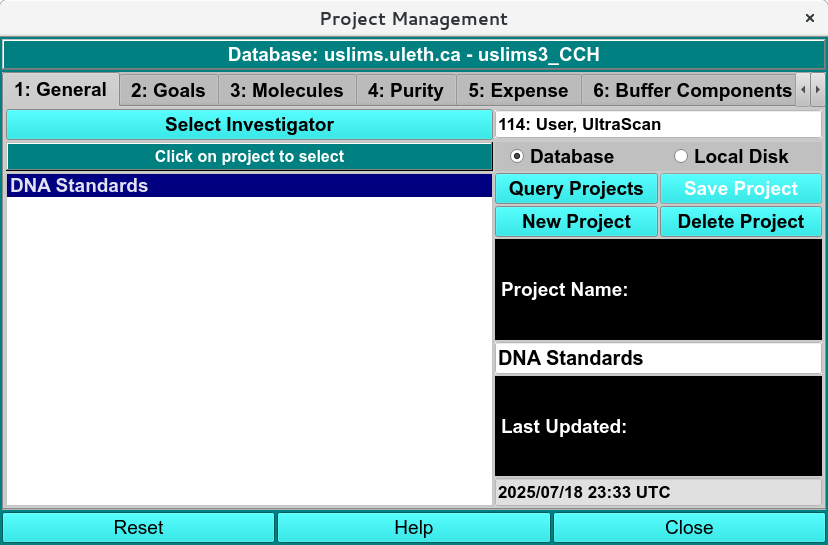
Project Management Module
Create Project Process:
Using this window, you can manage project information on your local disk or in the current database. You must be identified as the investigator to delete or update a project description in the database.
Project Navigation To load project information into the current window, first select the Use Database or the Use Local Disk radio button. Then click the Query Projects button. To display information about a single project, click on the project name listed in the click on project to select widget.
Create New Project To create a new project, click New Project and add a descriptive title. Edit the project goals, molecules, purity, expense, buffer components, salt information, AUC Questions and other notes. Then Click Save Project to create the project. You can edit an existing project by clicking on the Project Name and editing the appropriate box in the lower right-hand part of the window. the project goals, molecules, purity, expense, buffer components, salt information, AUC Questions and other notes can also be edited by clicking on the appropriate tab at the top of the window. Click on the Save Project button to save any changes.
Note
All of the fields are required to be completed before saving the project information.
Delete Project To delete a project, select the appropriate project in the click on project to select widget, and then click the Delete Project button. After making the appropriate changes, be sure to click the Save Project button to save your changes.
Projects Functions:
Click on project to select |
After clicking on the Query Projects button, this widget will contain a list of projects available in the current location (database or local disk). Click on a project in the widget to select. |
Use Database |
Check to select read or write of the project definition to or from the database. |
Use Local Disk |
Check to select read or write of the project definition to or from the hard disk. |
Query Projects |
This button initiates a read of project definitions and population of the project list widget. |
Save Project |
Saves the current project definition to the hard disk or database. |
New Project |
Creates a new project by returning all values to their defaults. Work through each tab to change the current contents as appropriate, and then click on the Save Project button. |
Delete Project |
Deletes the current project from the database or hard disk. |
Project Name |
The name of the project currently selected in the Click on project to select list widget, or a new name when creating a new project definition in the database or on the hard disk. |
Global Identifier |
Read-only global identifier of the project. |
Reset |
Reset all project values to default setting. |
Help |
Show this documentation. |
Close |
Close the dialog and possibly return project selections to the caller. |
Database Project tab
An existing project can be edited or a new project created using the Project tab.

Project Management Website Tab
Supporting data or documents can be uploaded and associated with the project.
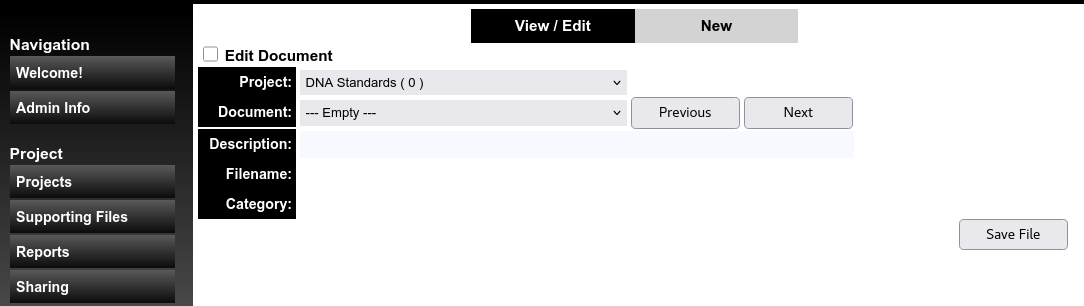
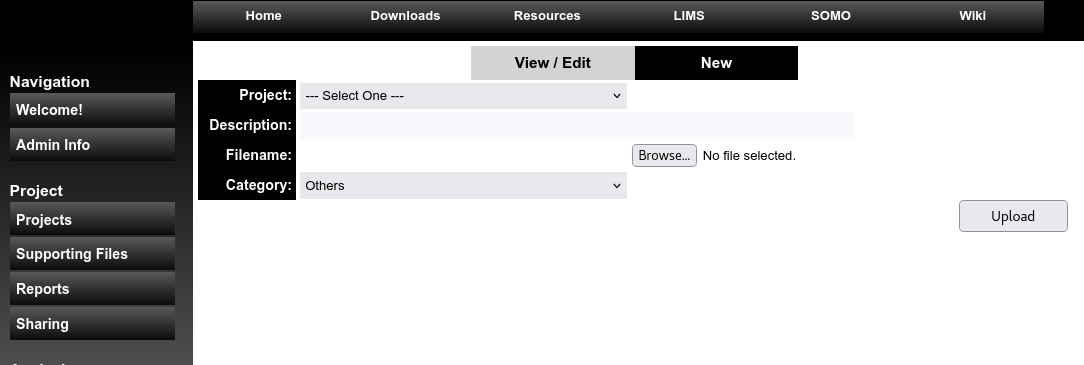
Add Supporting Data/Document to Existing Project